
Chrometa: Using the Find Time Feature
The Find Time feature in Chrometa empowers attorneys to identify and manage unallocated time efficiently. This functionality is particularly useful for law firms that need to track billable hours meticulously and ensure that no time entries are missed in client matters. By enabling users to search specifically for unallocated time, Chrometa enhances productivity and provides transparency in time management.
Accessing Find Time
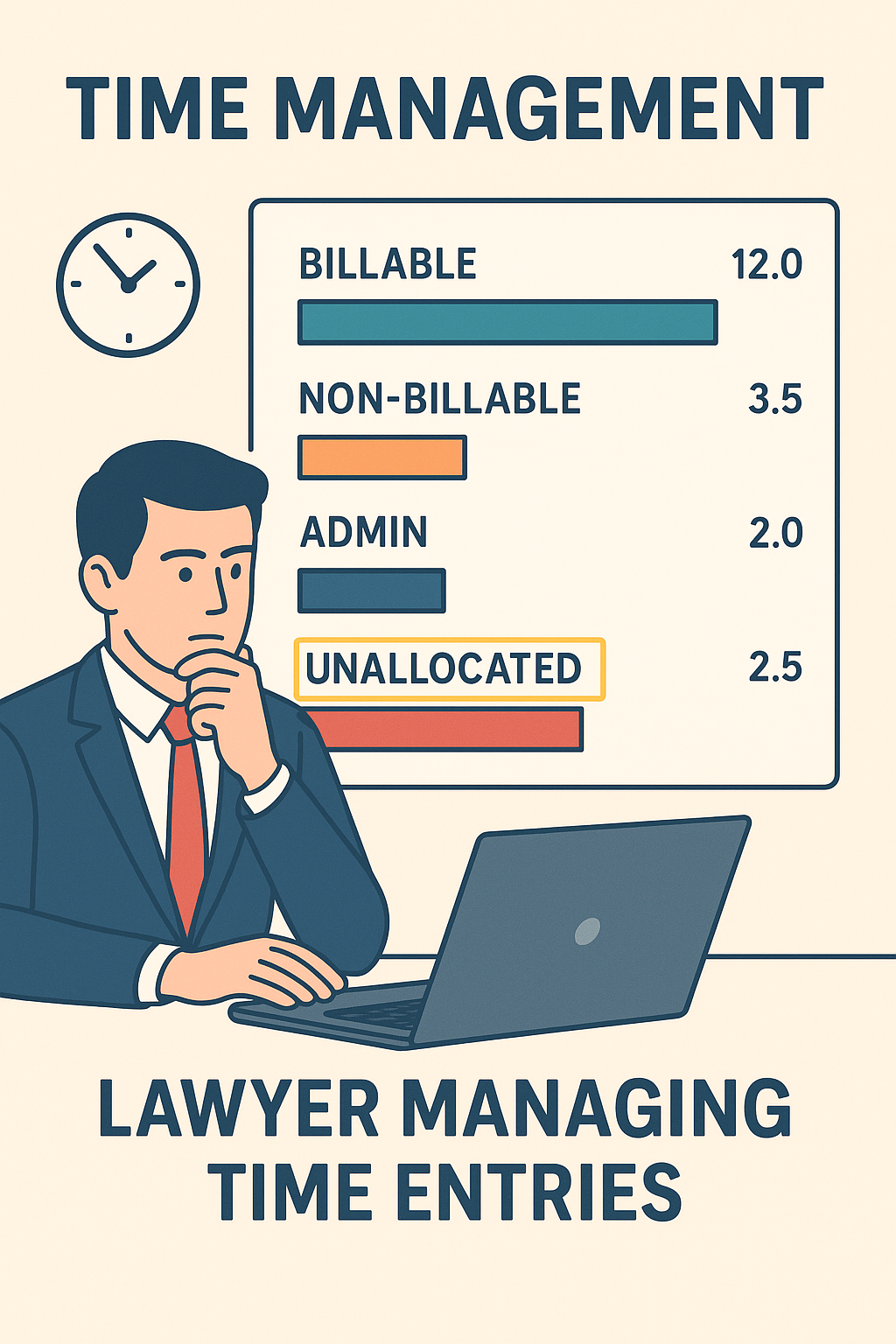
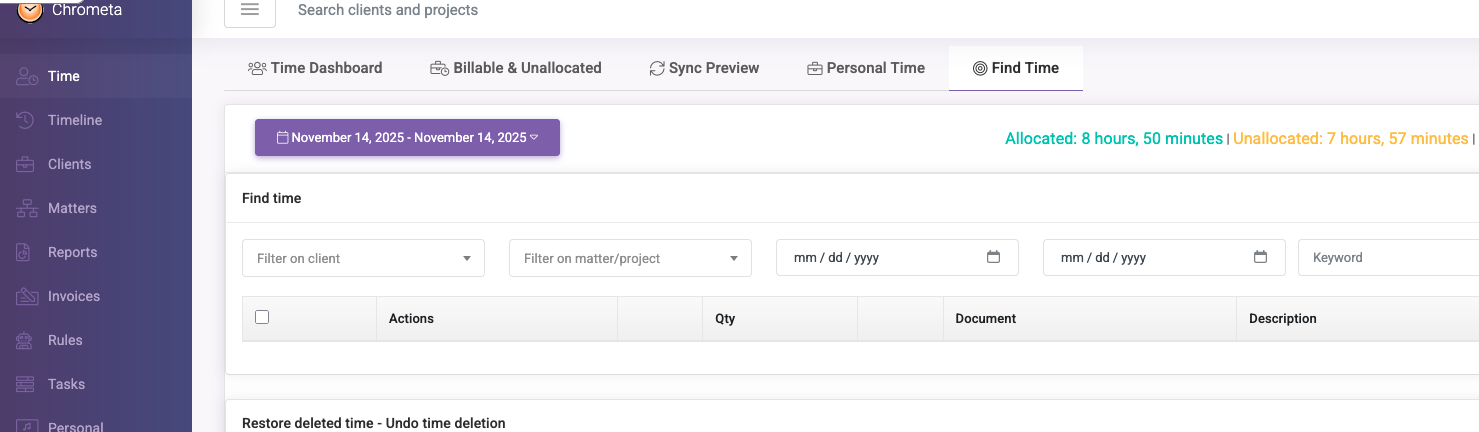
To begin using Find Time, navigate to the top menu in Chrometa and select My Time. From the dropdown, click on Find Time. This will open a dedicated interface where you can customize your search for unallocated time across your tracked activities.
Selecting a Date Range
Once in the Find Time interface, you need to define the period you want to examine. Use the date picker to select a start and end date. This allows you to narrow down your search to a specific billing cycle or reporting period. Attorneys often review weekly or monthly time entries to reconcile their records with client matters.

Filtering for Unallocated Time
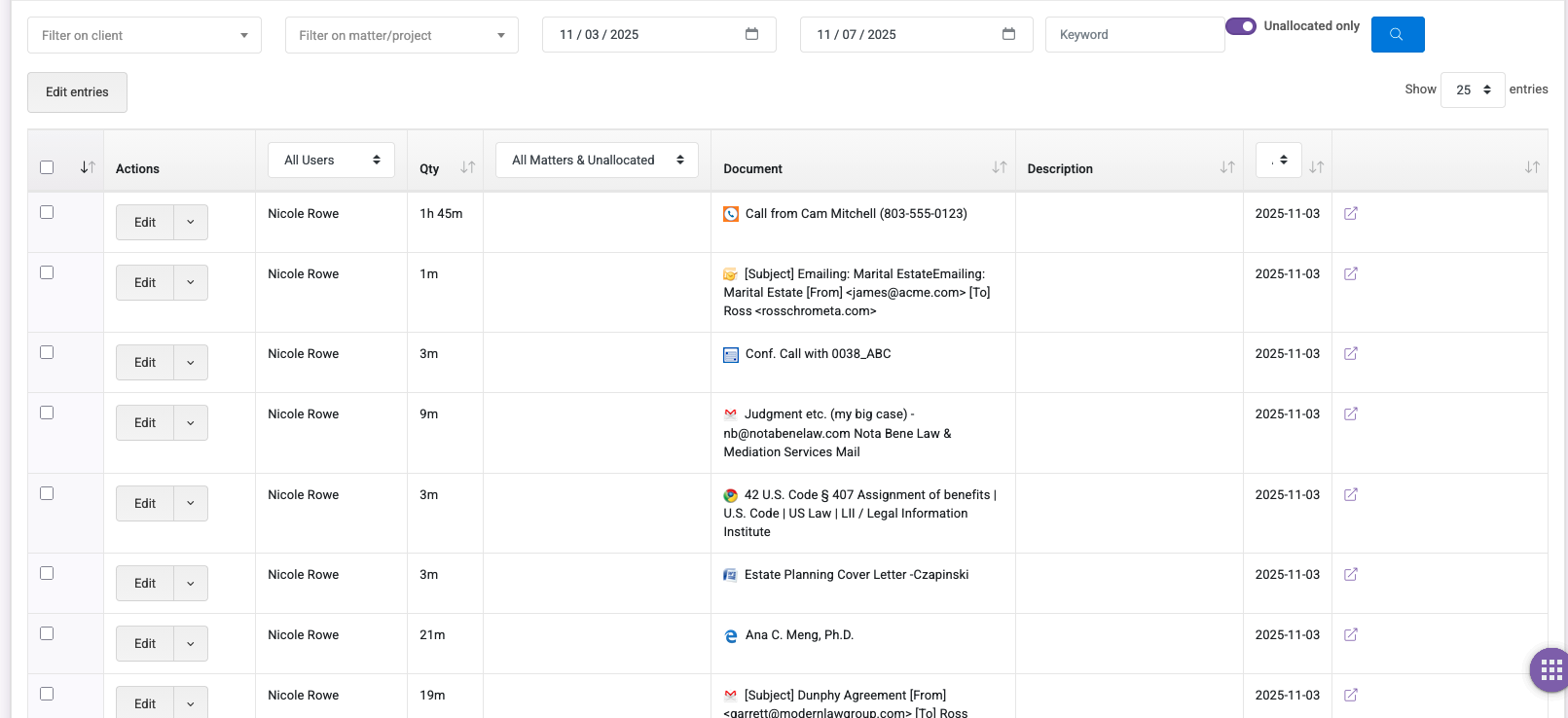
To focus solely on unallocated entries, activate the Unallocated only checkbox. This filter ensures that the search results will exclude any time already assigned to a client matter, thereby highlighting only those activities that require allocation. Using this feature helps prevent overlooked time that could otherwise go unbilled.
Performing the Search
After selecting your date range and activating the unallocated filter, click the Search button. Chrometa will process the request and return a list of time entries that have not yet been assigned to any matter. These results are displayed in a tabular format, showing details such as the date, duration, and description of each activity.
Understanding Search Results
The results table provides a comprehensive view of unallocated time. Columns typically include Date, Duration, Description, and Action. The Action column allows you to quickly allocate time to the appropriate matter, edit details, or mark entries for review. For law firms, this process ensures that all tracked time is eventually billed and accounted for in client invoices.
Best Practices for Managing Unallocated Time
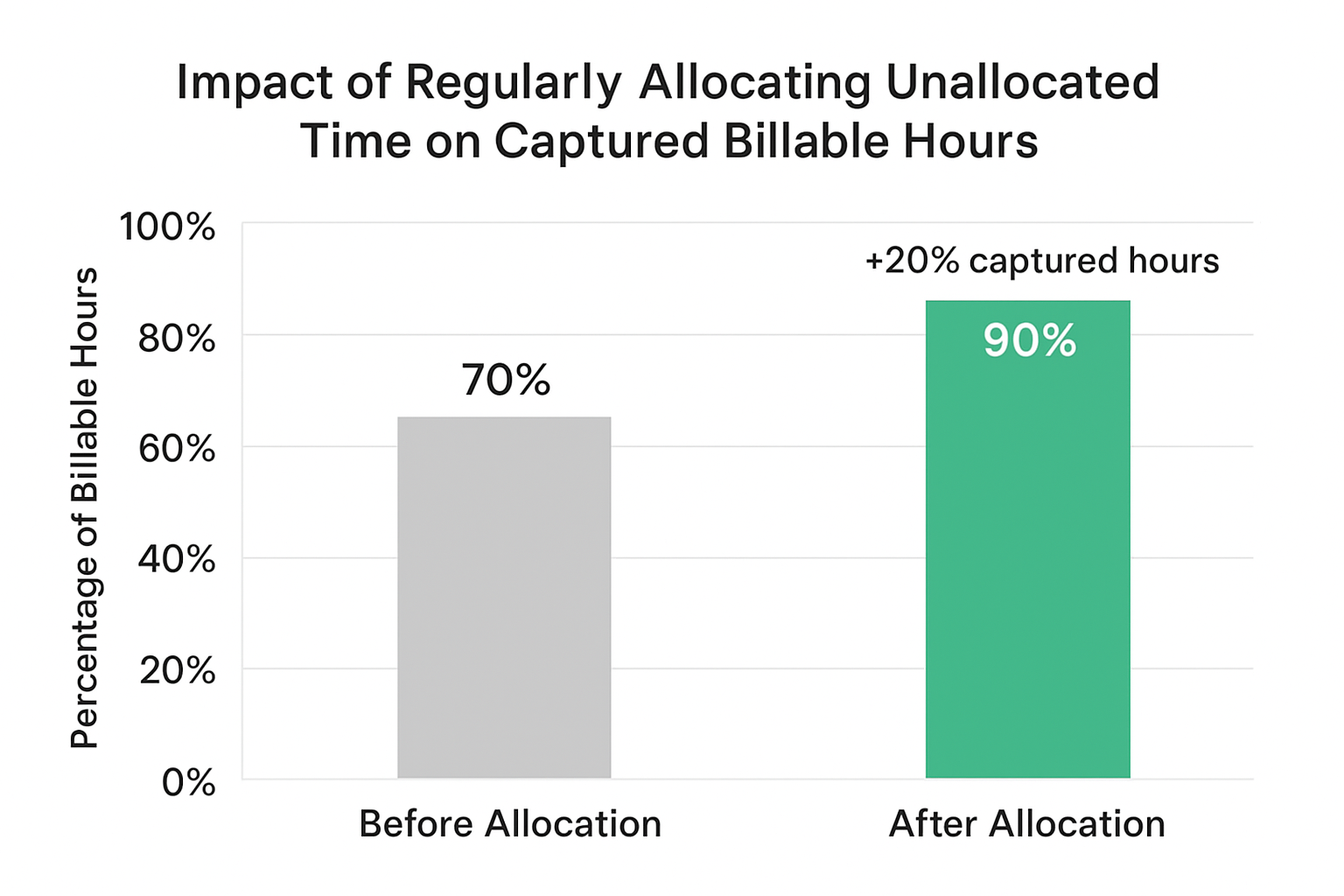
Efficiently managing unallocated time is crucial for maximizing billable hours. Attorneys are encouraged to regularly review unallocated entries, ideally at the end of each day or week. By consistently allocating time, you reduce the risk of missed billing opportunities and maintain accurate client records. Studies have shown that law firms that systematically track and allocate all time entries report up to 15% higher billable hour capture rates.
Tips for Attorneys
1. Use descriptive activity titles when logging time. This makes it easier to identify unallocated time that may belong to a specific matter.
2. Regularly reconcile unallocated time with client matters to ensure billing accuracy.
3. Consider integrating Chrometa with your practice management software to streamline the allocation process and reduce administrative overhead.
Advanced Search Options
Chrometa also offers advanced search options for more granular filtering. Users can search by project, client, or activity type. These filters are useful for attorneys handling multiple cases or matters simultaneously. Combining unallocated time filters with these advanced search options allows for precise time management and reporting.
Exporting and Reporting
Once unallocated time is reviewed and appropriately assigned, users can export the data to CSV or PDF for record-keeping or reporting purposes. Exported reports can be shared with accounting teams or clients, ensuring transparency and accuracy in billing practices. For law firms, reporting unallocated time can also highlight inefficiencies in time tracking practices, allowing for process improvements.
Conclusion
The Find Time feature in Chrometa provides attorneys with an efficient, reliable method to track and allocate unassigned time entries. By leveraging this tool, law firms can increase billing accuracy, improve time management, and ultimately maximize revenue capture. Regular use of Find Time ensures that every hour worked is properly accounted for, helping attorneys maintain both productivity and client satisfaction.
Comments
0 comments
Article is closed for comments.