
Overview
Some Windows users may see a Microsoft Defender SmartScreen warning when attempting to install Chrometa.
The message typically appears as:
Microsoft Defender SmartScreen prevented an unrecognized app from starting. Running this app might put your PC at risk.
While this warning can be concerning, it does not necessarily indicate that Chrometa is unsafe. SmartScreen uses Microsoft's reputation-based protection system and may display this warning for applications that have not yet established sufficient reputation with Microsoft.
If you downloaded Chrometa directly from our official website, you can safely proceed with the installation using the steps below.
Why am I seeing this message?
Microsoft Defender SmartScreen helps protect users from potentially malicious applications.
The warning may appear when:
- The application is new or recently updated.
- The application has not yet built sufficient reputation within Microsoft's SmartScreen network.
- Your organization's security policies are configured to display additional warnings.
- Windows cannot verify the application's reputation automatically.
This warning does not necessarily indicate malware or a security issue.
How to proceed with the installation
Step 1: Launch the Chrometa installer
Double-click the downloaded Chrometa installer.
You may see a window similar to the following: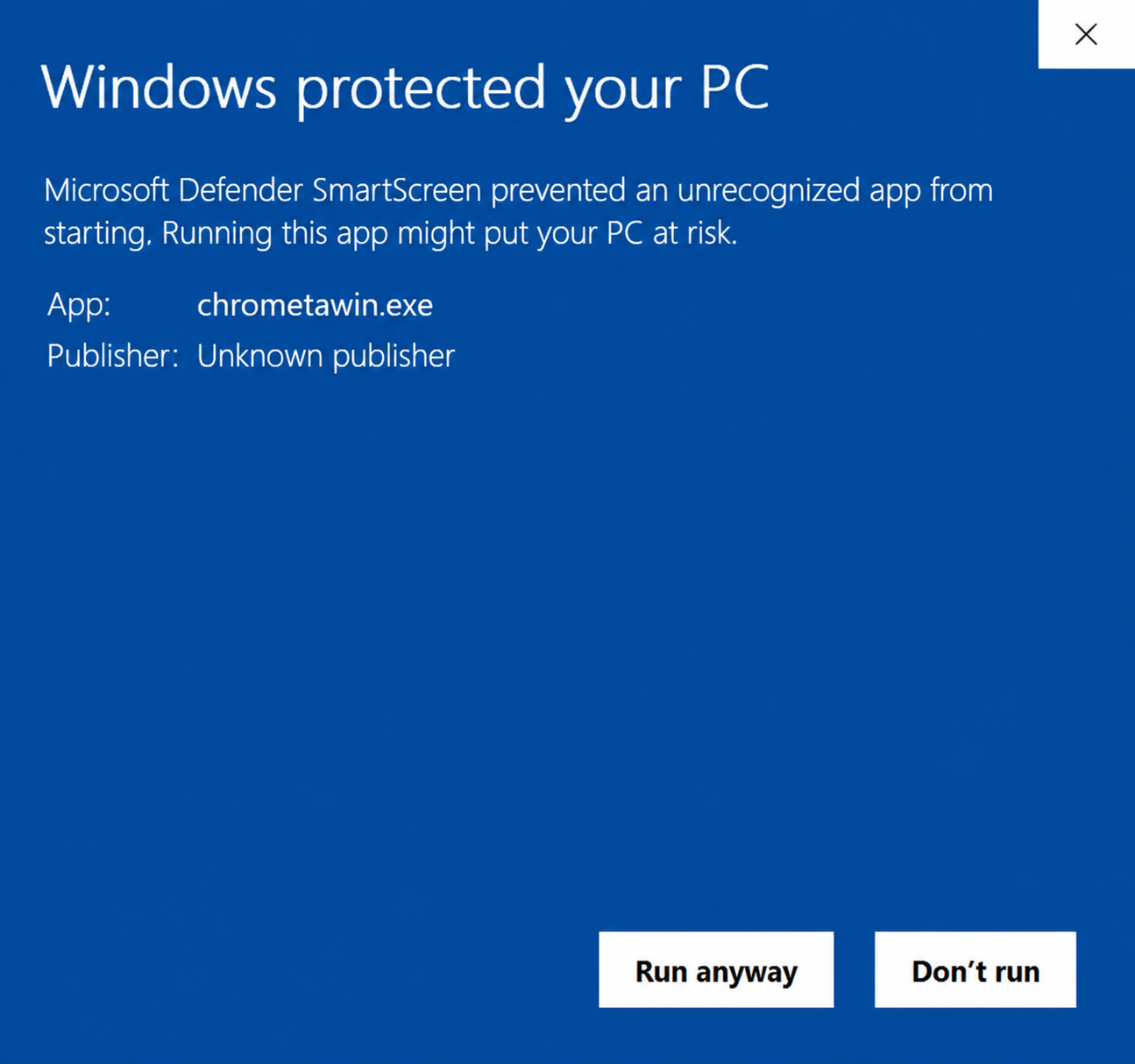
Step 2: Click "More info" if shown
Click the More info link within the SmartScreen dialog.
Additional details about the application will be displayed.
Step 3: Click "Run anyway"
After expanding the details, click Run anyway.
Windows will launch the installer and allow you to continue with the Chrometa installation.
Step 4: Complete the installation
Follow the installation prompts until Chrometa is installed successfully.
Once installed, launch Chrometa and sign in using your Chrometa account credentials.
What if I don't see the "Run anyway" button?
If the Run anyway button does not appear, one of the following may apply:
Corporate or managed device
If your computer is managed by your company's IT department, your organization may have security policies that block software installations.
Please contact your IT administrator and provide them with the Chrometa installer.
Security software restrictions
Some antivirus or endpoint protection products may prevent installation regardless of SmartScreen settings.
Temporarily disabling these protections is generally not recommended unless instructed by your IT department.
How can I verify that I downloaded Chrometa from the correct source?
Always download Chrometa from our official download page or from a link provided by Chrometa Support.
If you are unsure whether you have the correct installer, please contact our support team before proceeding.
Still need help?
If you're unable to install Chrometa after following the steps above, please contact Chrometa Support and include:
- A screenshot of the warning message
- Your Windows version
- Whether the computer is personally owned or managed by your organization
- Any additional error messages you receive
Our support team will be happy to assist.
Related Articles
- Installing Chrometa on Windows
- Installing Chrometa on Mac
- Allowing Chrometa Through Security Software
- Troubleshooting Installation Issues
Comments
0 comments
Article is closed for comments.